Today we came across a requirement where the user asked to setup Sage X3 data backup process automatically. It is so often required by ERP users to back up their valuable data on a periodic basis. In X3 you do not need to make any customization to setup automatic backup. X3 allows automatic data extraction of the folders through the use of Recurring Task.
Our Other Blogs : Sage CRM | Sage 300 ERP | Salesforce.com
The steps for setting up automatic X3 data backups are as follows:
- Login to the X3 Folder with Administrator account.
Open the Recurring Task Management Screen. (Usage-> Batch Server->Recurring Task Management). - Create a new Recurring Task from the screen. Please refer the below screenshot for creating the Recurring Task.
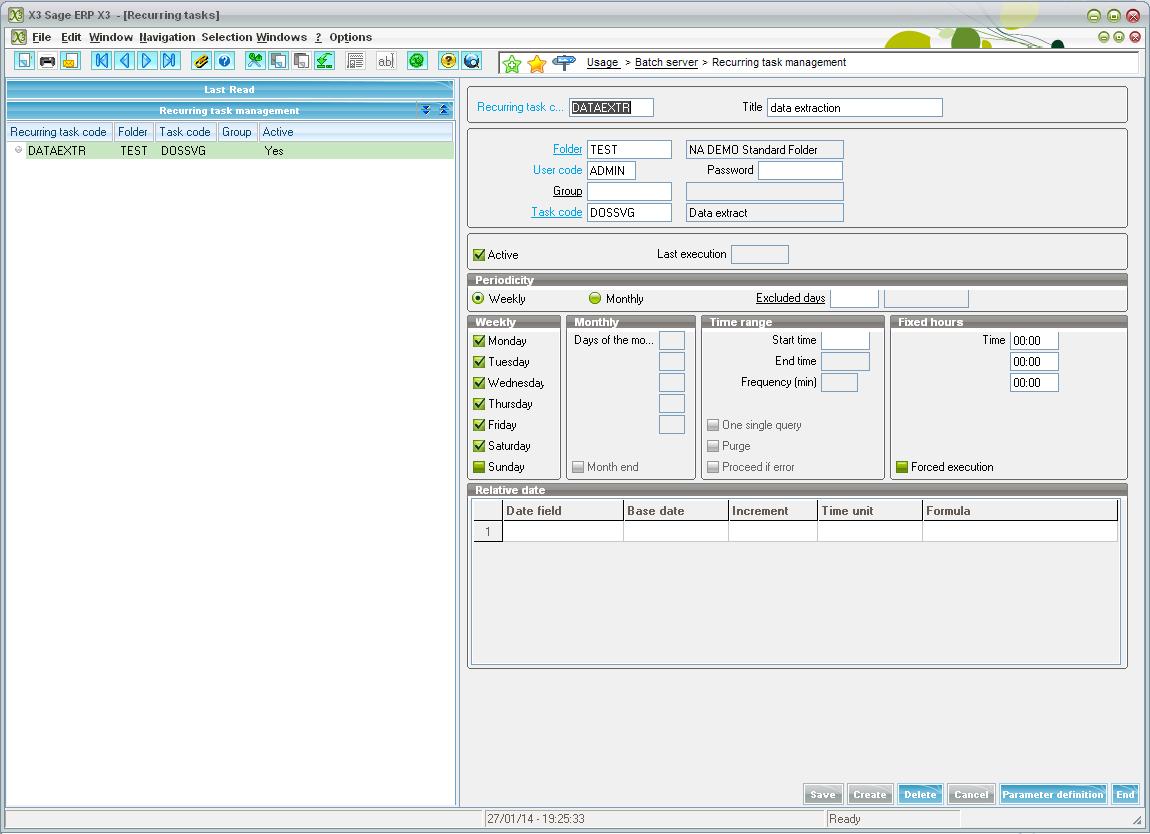
- If you are creating a Task Code from the X3 Folder do enter X3 as the Folder in the Field ’FOLDER’. Enter an Admin User in the User Code field.
- Make sure you enter the TASK CODE as “DOSSVG”.
- Setup the Periodicity as per your requirement and Click on Active.
- Then Click on Create.
- Click on Parameter Definition. This will open the below window(Data Extract):
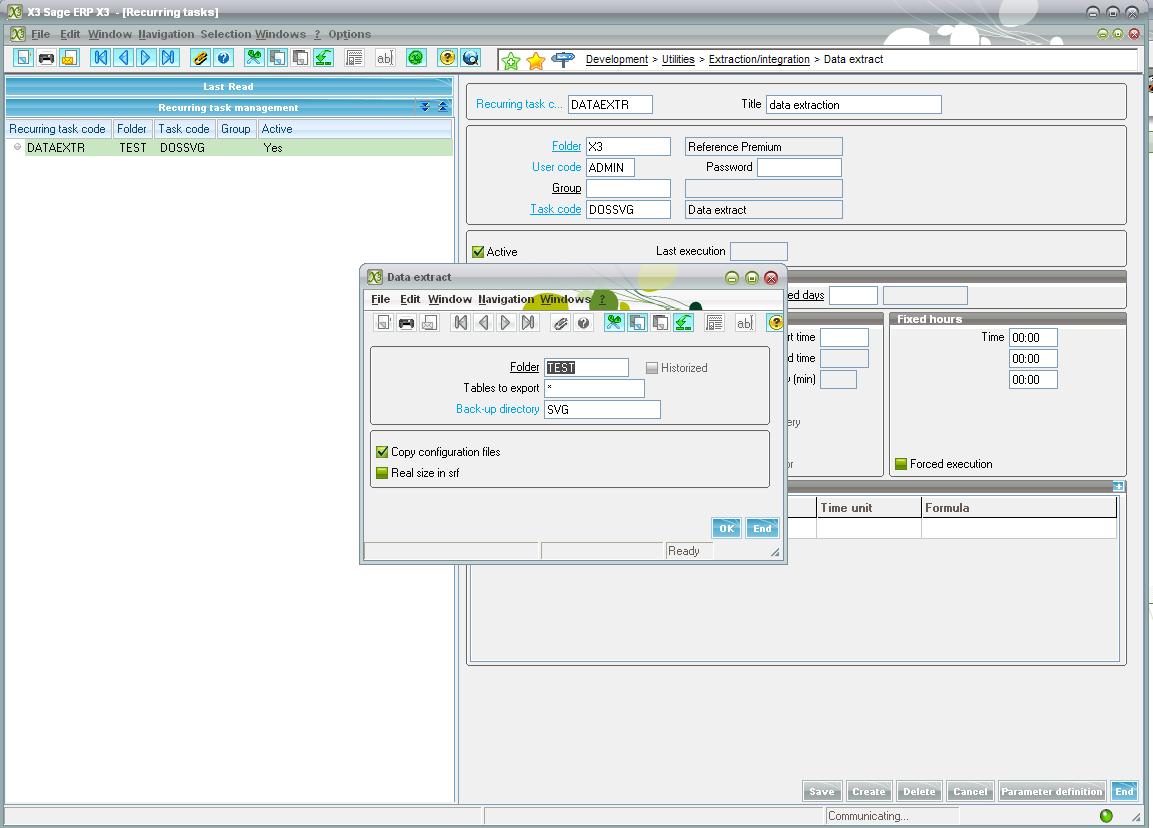
- Enter the name of the Folder whose data you need to extract. Keep rest of the field’s value as default and click on OK.
- Click on Save and your recurring task setup is complete.
Greytrix and Sage ERP / CRM
The perfect combination for clients across various industries in India
The recurring task will automatically execute the data backup for the folders that you have setup. You will have to setup a Recurring Task for each folder to take their respective backup.
Note : The DOSSVG function is linked to the adonix engine and not to the standard databases. It will backup only the DATA created from the X3 application. It is advisable to make a copy of the FOLDER and the folders under the X3_PUB folder as well since this will include all the code, menus and other configured objects. In case if X3 utilizes any additional SQL objects(other than the standard objects) then it is suitable to take their backup manually using appropriate SQL tools. Last but not the least kindly ensure that no one is connected to the folder while the extraction is in progress. If updates take place during the export it can lead to a database image that is not globally coherent.
Also Read:
1) Data Backup and Restore in Sage ERP X3
2) Data Maintenance in Sage X3
3) How to reconfigure Sage X3 solution after changing the computer name/domain
4) Setup Templates to Copy your Common Data and Transactions to another Sage X3 Folder
5) How to Unlock your Process in Sage X3